
Want to know how to fix support Apple iPhone restore screen? If your iPhone is stuck on the “support.apple.com/iphone/restore” screen, it can be confusing and stressful. This usually happens during an iOS update or a system problem, making your phone unresponsive.
But don’t worry as you can fix it. In this article, we will show you easy ways to get your iPhone back to normal. You’ll learn free methods like force restarting and using iTunes, as well as a simple one-click solution with ReiBoot.
So, let’s get started.
Part 1: What does support.apple.com/iphone/restore Mean?
Are you wondering what does restore mean for iPhone? If you see the “support.apple.com/iphone/restore” message on your iPhone, it usually means your device has run into a serious problem during an update or system error. Your iPhone is asking you to restore it using a computer, typically through iTunes or Finder.
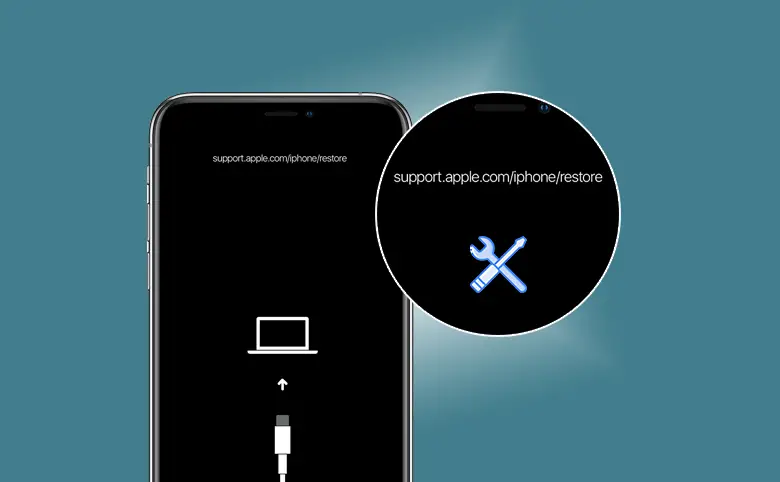
This screen is also called the iPhone recovery screen. It acts as a safeguard to prevent further damage to your device. Once your iPhone enters this mode, you can’t use it normally until it’s restored or repaired.
This message is not a hardware problem; it’s your iPhone trying to protect itself. The good news is, there are several ways to fix it and get your iPhone working again.
Part 2: How to Fix My iPhone Stuck on the Restore Screen for Free?
1. Force Restart iPhone
Sometimes, your iPhone just needs a little nudge to wake up. A force restart can fix small glitches that cause it to freeze on the restore screen, and the best part is, it won’t delete your data.
Steps:
- iPhone 8 or later: Press and quickly release Volume Up, then Volume Down, and finally hold the Side button until the Apple logo appears.
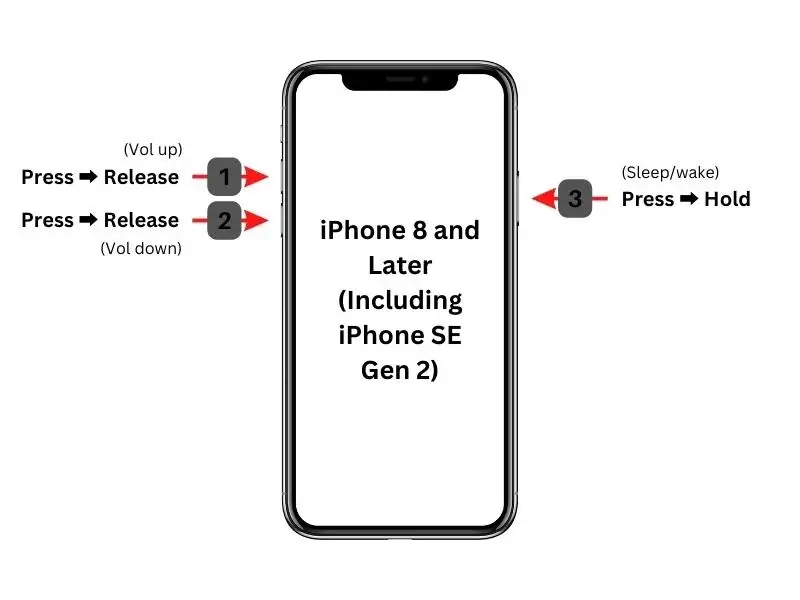
- iPhone 7 / 7 Plus: Press and hold both Volume Down + Side button until the Apple logo shows.
- iPhone 6s or earlier: Press and hold Home + Side (or Top) button until the Apple logo appears.
2. Reinstall iOS via iTunes
If a force restart doesn’t help, your iPhone might need a fresh iOS installation. Using iTunes (or Finder on Mac) can fix system errors and failed updates. You can try Update first to keep your data safe.
Steps:
Here’s the iPhone 11 Pro Max recovery screen fix:
- Connect your iPhone to a computer with iTunes or Finder.
- Open iTunes and select your device.
- Click Update to reinstall iOS without erasing your data.
- If the Update fails, choose Restore (this will erase all data).

You will see iTunes is restoring the software on this iPhone. Once completed, your iPhone will be working fine. And if you see the “iPhone won’t restore” issue, you will have to move to the next fix.
3. Contact Apple Support
Sometimes, your iPhone just needs a little help from the experts. Apple Support can guide you through tricky situations and even repair your device if needed. If you are looking for a way to fix support.apple.com/iphone/restore without computer, contacting Apple Support is one of the solutions.
Steps:
Here’s the official iPhone 11 Pro Max recovery screen fix:
- Visit Apple Support.
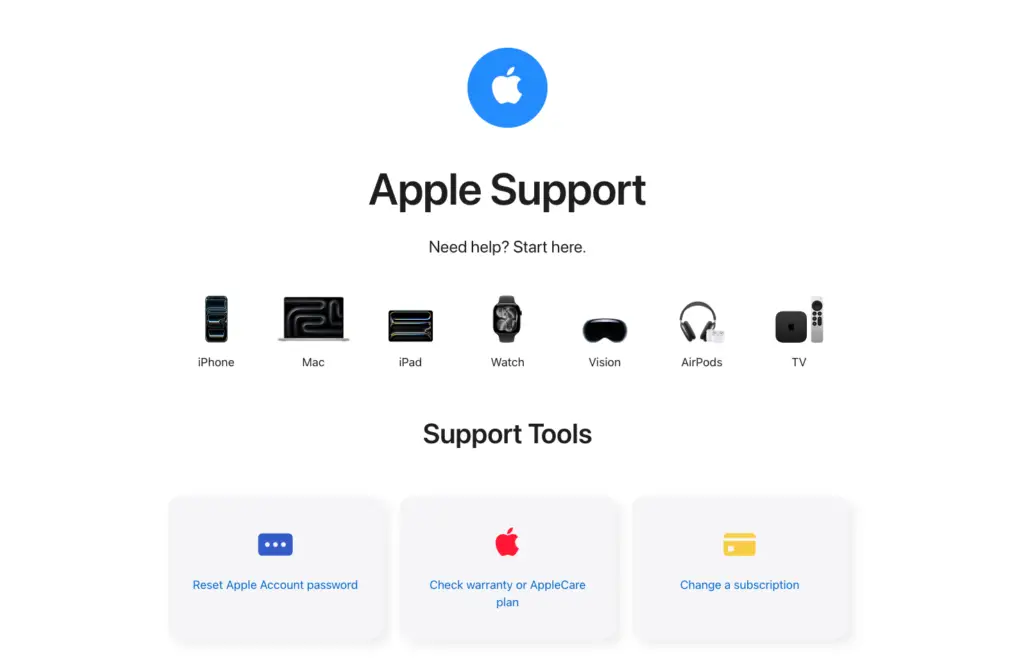
- Select iPhone > Repairs & Physical Damage > Screen shows “support.apple.com/iphone/restore”.
- Follow their instructions to fix the issue or schedule a repair.
4. Restore iPhone via DFU Mode (Data Loss)
If nothing else works, DFU Mode is your secret weapon. It fixes deep system issues but will erase all your data, so only use it as a last resort. Think of it as giving your iPhone a complete reset.
Steps:
- Enter DFU Mode:
- iPhone 8 or later: Press and release Volume Up, then Volume Down, hold Side button until screen goes black > Hold Side + Volume Down for 5 seconds > Release Side button but keep holding Volume Down until iTunes detects the device.
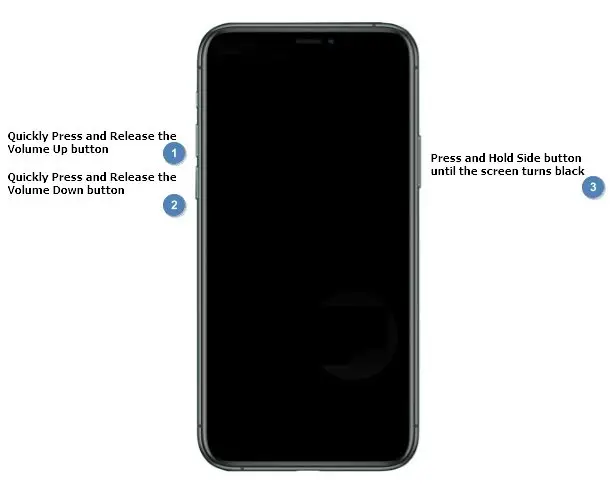
- iPhone 7 / 7 Plus: Hold Side + Volume Down until iTunes detects the device.
- iPhone 6s or earlier: Hold Home + Side buttons until iTunes detects the device.
- In iTunes, click Restore iPhone.
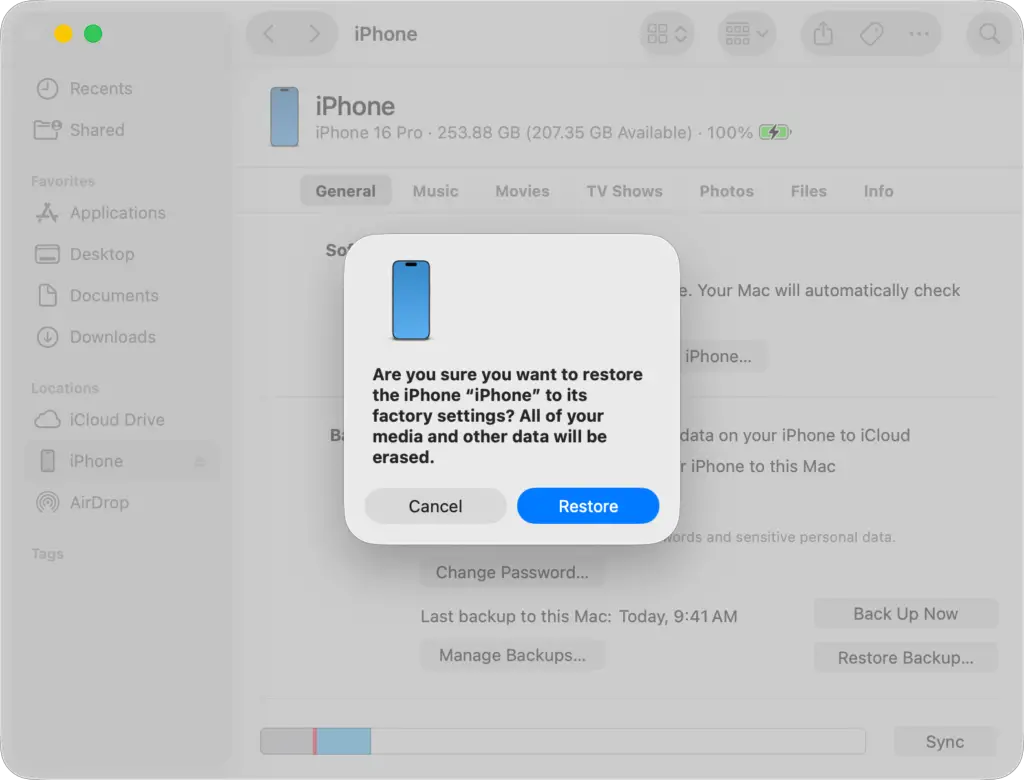
DFU mode is powerful and often fixes stubborn restore screen issues, but remember to back up your iPhone if possible.
Part 3: Bonus Tip: Best way to Fix iPhone Stuck on Restore Screen with one-click
Traditional methods like force restart, iTunes updates, or DFU mode can be confusing, slow, or even risky. That’s where Tenorshare ReiBoot comes in. It’s designed to get your iPhone back to normal safely, quickly, and without losing data. Even beginners can fix their device in just a few clicks!
Why We Recommend ReiBoot
- One-Click Exit from Restore Screen: You don’t need to memorize button combinations or go through complex steps. A single click can get your iPhone out of recovery mode.
- No Data Loss: Unlike DFU restore or iTunes restore, ReiBoot allows you to repair iOS while keeping all your photos, apps, and messages intact.
- Simple, Guided Steps: The interface is clear, and the software guides you at every step, so even non-tech-savvy users can follow along.
- Automatic Device Detection: It instantly recognizes your iPhone model and iOS version, so you don’t have to worry about downloading the wrong firmware.
- High Success Rate: Works on almost all iPhone models (iPhone 6 and later) and iOS versions, making it a reliable tool for any restore screen problem.
With these advantages, ReiBoot is like having a tech expert in your computer, ready to fix your iPhone anytime.
How to Use ReiBoot to Fix iPhone Stuck on Restore Screen
Follow these 2 easy steps to solve support.apple.com/iphone/restore:
Method 1: One-Click Exit Recovery Mode
This is the fastest way to get your iPhone back to normal.
- Launch Tenorshare ReiBoot on your computer.
- Connect your iPhone using a USB cable.
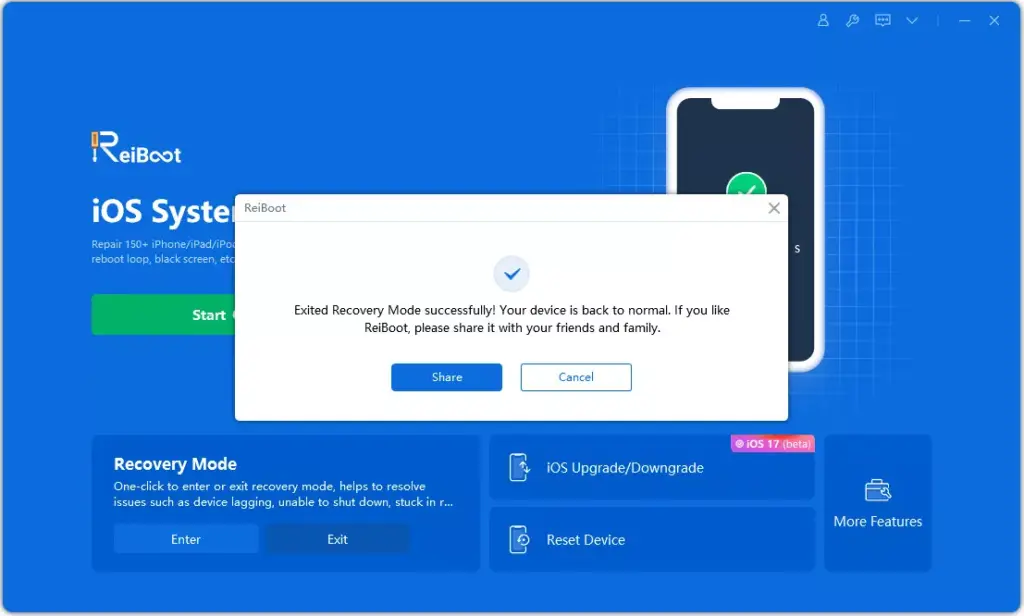
- It can automatically recognize your iPhone. Click “Exit” and the software will start getting your iPhone out of the restore screen.
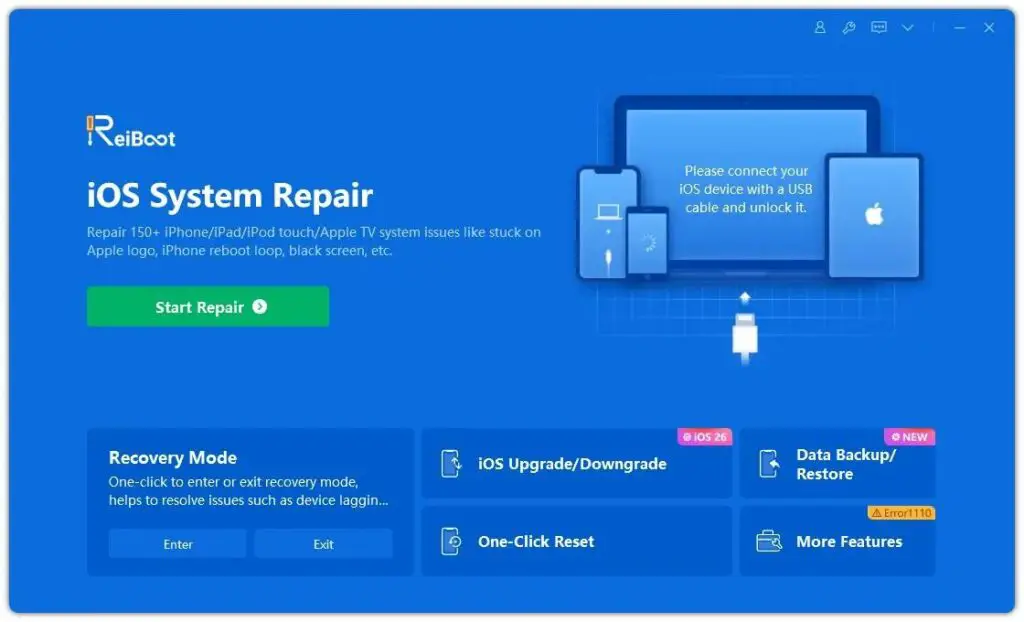
- Within one minute, your device will reboot normally.
Method 2: Repair iPhone System (Keep Data)
- Open ReiBoot and click “Start Repair”, then connect your iPhone with a USB cable.
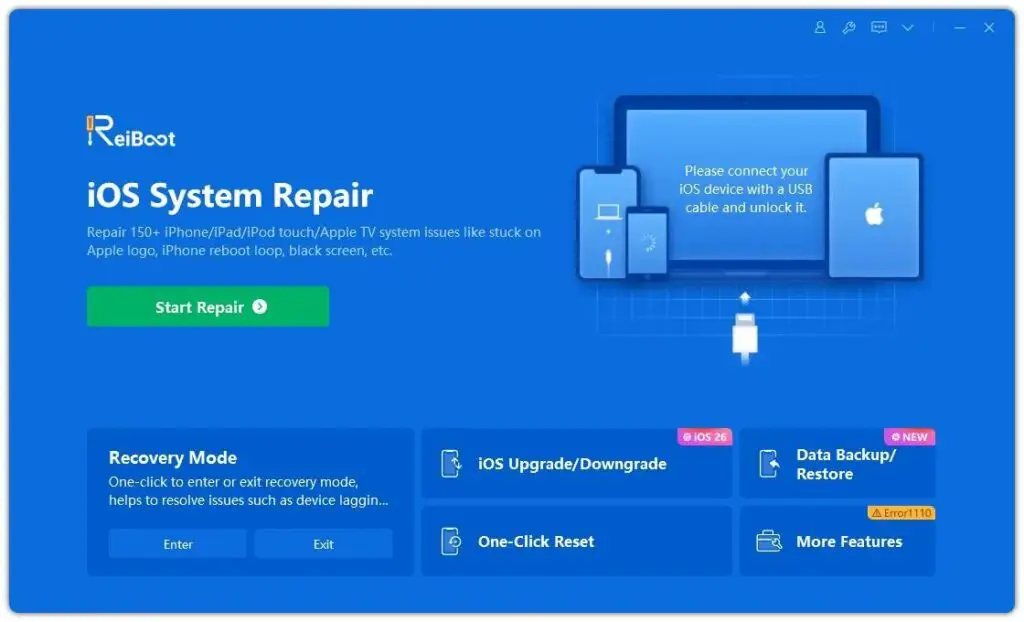
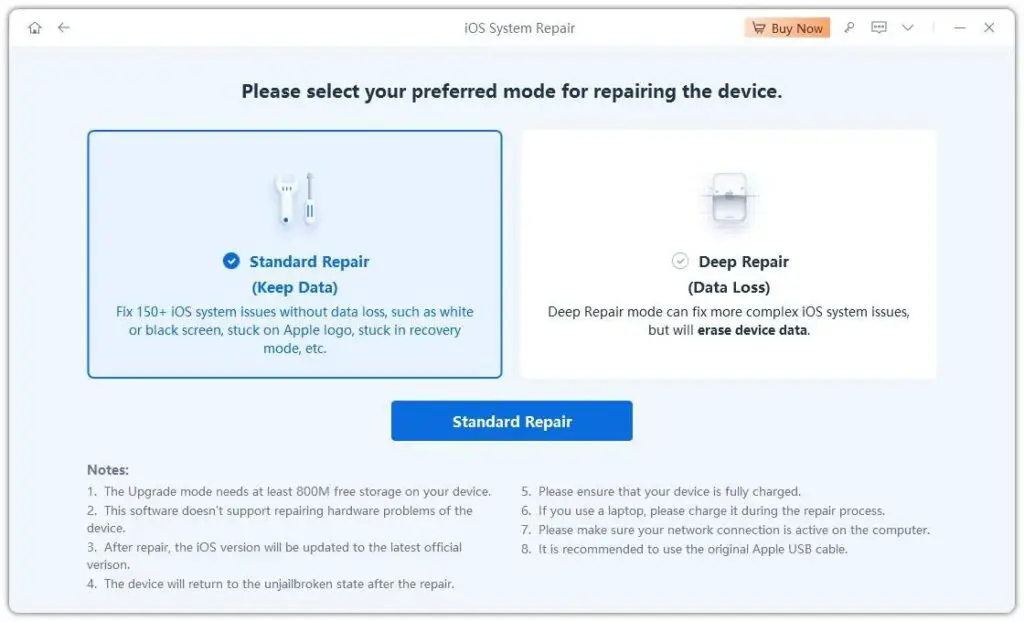
- Choose “Standard Repair” and click to proceed.
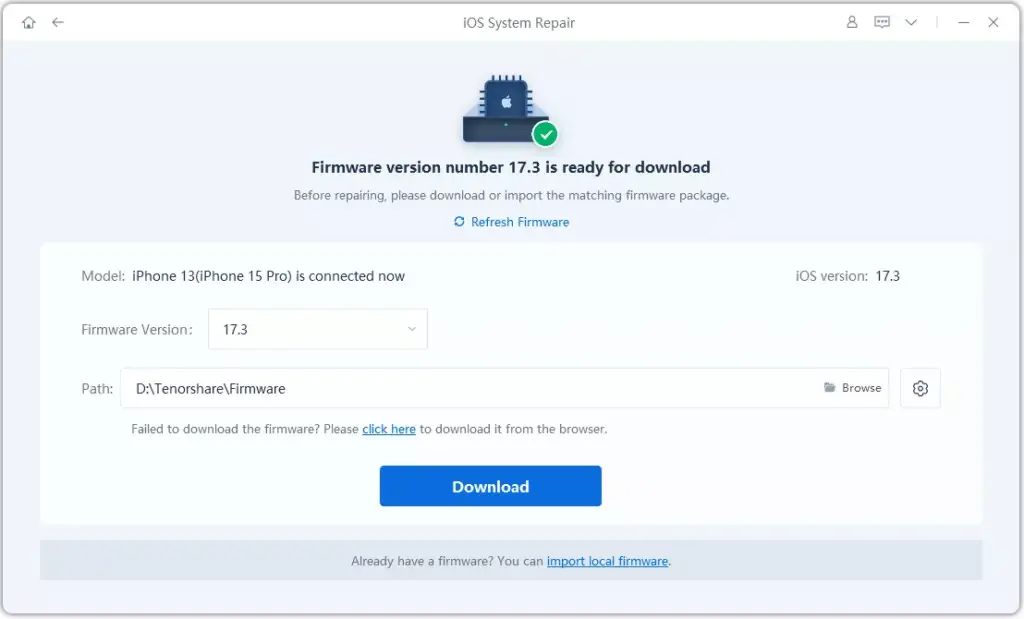
- ReiBoot will detect your iPhone and suggest a firmware package. Click “Download” to start.
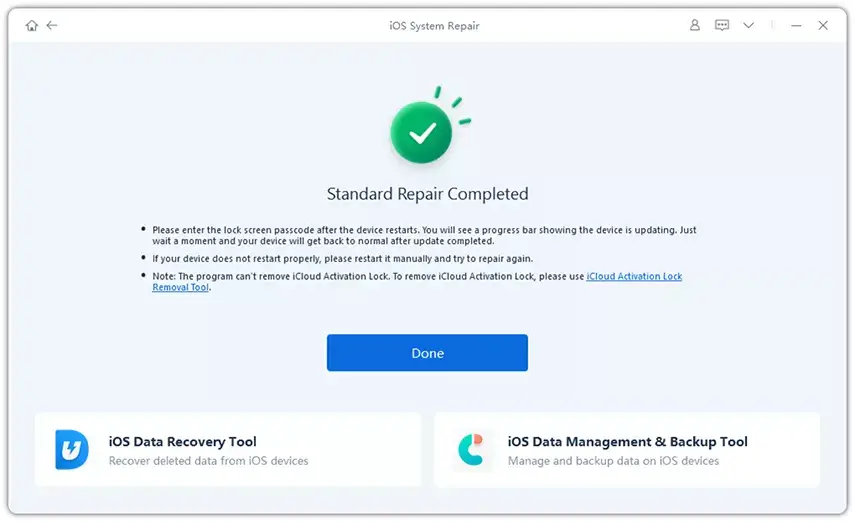
- Wait for the download and repair process to finish. Your iPhone will restart automatically, and the restore screen issue will be fixed.
Part 4: FAQs about support.apple.com/iphone/restore
Q1: What is the easiest way to fix my iPhone stuck on Restore Screen?
The easiest way to fix your iPhone stuck on the restore screen is to use Tenorshare ReiBoot. With just one click, it can exit recovery mode safely and quickly. It keeps all your data, like photos, messages, and apps, safe, so you don’t have to worry about losing anything important.
Q2: I tried using iTunes but it still didn’t work, what should I do?
If iTunes cannot fix the restore screen, your iPhone may have a deeper system problem. You can use ReiBoot’s Repair Operating System feature to reinstall iOS safely. It will fix the restore screen and keep your data intact, making it much easier and safer than trying iTunes again.
Q3: How do I fix the recovery screen on iPhone 11/12/13/X/11 Pro Max?
The solution is the same for all modern iPhones. You can force restart your device, use iTunes to update or restore iOS, or use ReiBoot to exit recovery mode. ReiBoot works on all iPhone models and iOS versions, so it is a safe and simple way to solve the restore screen problem.
Q4: If I don’t have a computer, can I use an iPad to connect?
No, you cannot use an iPad to fix the restore screen. You need a Windows PC or Mac with iTunes or ReiBoot installed. An iPad does not have the necessary software to repair or reinstall iOS, so a computer is required to solve this problem safely.
Conclusion
Getting your iPhone stuck on the “support.apple.com/iphone/restore” screen can be frustrating, but it’s not the end of the world. You can fix support Apple iPhone restore screen with free methods like force restarting, using iTunes, or DFU mode, but these can sometimes be complicated or risky.
The safest, fastest, and easiest way to fix this problem is to use Tenorshare ReiBoot. With just a few clicks, ReiBoot can exit recovery mode or repair your iPhone system without losing any data. It works on all iPhone models and iOS versions, making it a reliable tool for anyone facing the restore screen issue.
More iDevice Central Guides
- iOS 17 Jailbreak RELEASED! How to Jailbreak iOS 17 with PaleRa1n
- How to Jailbreak iOS 18.0 – iOS 18.2.1 / iOS 18.3 With Tweaks
- Download iRemovalRa1n Jailbreak (CheckRa1n for Windows)
- Dopamine Jailbreak (Fugu15 Max) Release Is Coming Soon for iOS 15.0 – 15.4.1 A12+
- Cowabunga Lite For iOS 16.2 – 16.4 Released in Beta! Install Tweaks and Themes Without Jailbreak
- Fugu15 Max Jailbreak: All Confirmed Working Rootless Tweaks List
- iOS 14.0 – 16.1.2 – All MacDirtyCow Tools IPAs
- iOS Jailbreak Tools for All iOS Versions
