
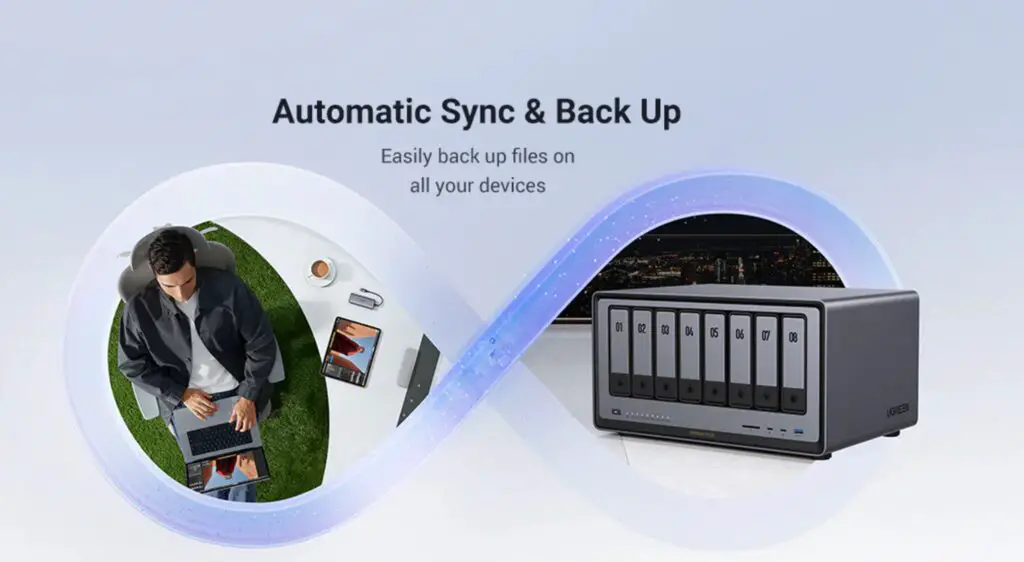
One of the most common questions new NAS users ask is how much storage they actually need. Choosing too little storage can lead to frequent upgrades and frustration, while choosing too much may feel like unnecessary spending.
For home users, especially beginners, storage planning does not need to be complicated. If you understand what you store today and how your data will grow, choosing the right NAS capacity becomes much easier. Modern home NAS platforms such as UGREEN NASync are designed to scale with user needs, which makes planning more flexible than ever.
This guide explains how to estimate your storage needs for a home NAS, how to avoid common mistakes, and how to plan for growth without overbuying.
Why Storage Planning Matters for a Home NAS
A NAS is often used as a central storage location for multiple devices. Photos, videos, documents, computer backups, and shared files can all accumulate in one place.
Unlike cloud storage, where capacity can be increased instantly with a subscription, a NAS relies on physical hard drives. Planning ahead helps ensure your NAS remains useful for years without constant hardware changes.
For UK households with multiple users and devices, storage needs often grow faster than expected.
A Simple Way to Estimate Your NAS Storage Needs
If you want a quick starting point, estimate how much you already store across phones and computers, then add expected growth. Many home users find it practical to plan for more than just today’s library.
- Start with what you already have: photos, videos, documents, and existing backups.
- Add what you expect to create: new photos, new videos, and ongoing device backups.
- Leave spare space: keeping free capacity helps performance and avoids hitting limits too quickly.
Step 1: Identify What You Plan to Store
The first step is understanding what types of data you want to keep on your NAS.
Most home users store a mix of photos, videos, documents, and computer backups. Some also store media libraries or work-related files.
Your main use case matters. If your goal is basic file backup and document storage, you will need less capacity than someone storing high-resolution video or large media collections.
UGREEN NASync is commonly used for centralised home storage, so it is important to consider all devices that will connect to it.
Step 2: Estimate Photo Storage Needs
Photos are often underestimated when calculating storage.
Modern smartphones take high-resolution photos that can average several megabytes each. Over time, thousands of photos can add up to hundreds of gigabytes.
If multiple family members back up photos to the NAS, storage usage grows much faster. Users who take photos regularly should plan for long-term growth rather than only their current library size.
A NAS also allows you to keep original-quality photos without relying solely on cloud compression or storage limits.
Step 3: Estimate Video Storage Needs
Video files consume significantly more space than photos.
Short videos recorded on phones may take tens or hundreds of megabytes, while longer or higher-quality videos can take several gigabytes each. Holiday videos, family events, and personal recordings can fill storage quickly.
If you record in high resolution or keep videos long term, video storage should be a major factor in your plan.
Home NAS users often underestimate how quickly video libraries accumulate, especially across multiple phones.
Step 4: Consider Computer and Device Backups
Backing up PCs and Macs is one of the most common uses for a NAS.
A full system backup can take hundreds of gigabytes per computer, especially if it includes applications, system files, and personal data. Incremental backups reduce growth over time, but initial backups still require significant space.
Households with multiple computers should multiply backup estimates accordingly. A NAS that supports several device backups can reduce the need to manage separate external drives.
Models such as the UGREEN NASync DXP8800 Plus are often chosen by users who want to support several device backups without worrying about running out of space too quickly.
Step 5: Think About Shared and Future Data
A NAS is often used for shared household files such as documents, scanned records, or creative projects. These may start small but grow steadily over time.
Future needs also matter. Children generate more data as they grow older, camera quality improves, and work-from-home storage needs may increase.
Choosing a NAS that supports expansion is one of the simplest ways to future-proof your setup.
UGREEN NASync systems are designed to support growing storage needs, making it easier to adapt as usage changes.
Step 6: Understand Usable Storage and RAID
The total storage you install in a NAS is not always the same as usable storage.
If you use drive mirroring or other redundancy options, some capacity is reserved for data protection. This means you may only have access to a portion of the total installed storage.
For beginners, the key point is simple: redundancy improves reliability but reduces usable space. Planning with this in mind prevents surprises when you start storing data.
Step 7: Common Storage Size Ranges for Home Users
While every household is different, many home NAS users fall into general patterns based on how they use their data.
Light users who mainly store documents and photos may be comfortable with lower capacity. Typical families storing photos, videos, and at least one computer backup often need more room than expected. Heavy users with large media libraries, frequent video recording, or multiple computer backups often benefit from higher-capacity setups.
Users with larger libraries or multiple computers may benefit from higher-capacity systems like the UGREEN NASync DXP8800 Plus, which are designed to support larger configurations.
The best approach is choosing a range that matches both current usage and future growth.
Step 8: Expansion vs Replacement
One advantage of a NAS over external drives is expandability.
Some NAS systems allow you to add more drives or replace existing ones with larger capacities. This reduces the need to replace the entire system as storage needs grow.
For beginners, expansion support is often more valuable than buying maximum storage on day one. Flexibility can save money and reduce effort over the long term.
UGREEN NASync platforms are designed with scalability in mind, allowing users to start with smaller storage and expand later.
Common Mistakes When Choosing NAS Storage
One common mistake is buying the smallest possible storage to save money, then running out of space within a year or two.
Another mistake is ignoring backup overhead. Backups, versioning, and snapshots can require additional space that is not always obvious at first.
Many users also underestimate how quickly photos and videos grow. Avoiding these issues starts with realistic planning and leaving room for growth.
Is Bigger Always Better?
More storage provides flexibility, but it should still align with your needs and budget.
For beginners, it is often better to choose a NAS that supports expansion rather than installing maximum storage immediately. This approach balances cost with future readiness.
High-capacity NAS models such as the UGREEN NASync DXP8800 Plus are suitable for users who already know they will store large amounts of data or support multiple users and devices.
Final Thoughts
Choosing the right amount of storage for a home NAS does not require precise calculations, but it does require an honest assessment of your data habits.
By considering photos, videos, backups, shared files, and future growth, you can make a confident decision that avoids frequent upgrades or wasted capacity.
For UK home users exploring NAS storage, platforms such as UGREEN NASync offer flexible solutions that grow with your needs. Understanding how much storage you really need is the foundation of a reliable and long-lasting home NAS setup.
More iDevice Central Guides
- iOS 17 Jailbreak RELEASED! How to Jailbreak iOS 17 with PaleRa1n
- How to Jailbreak iOS 18.0 – iOS 18.2.1 / iOS 18.3 With Tweaks
- Download iRemovalRa1n Jailbreak (CheckRa1n for Windows)
- Dopamine Jailbreak (Fugu15 Max) Release Is Coming Soon for iOS 15.0 – 15.4.1 A12+
- Cowabunga Lite For iOS 16.2 – 16.4 Released in Beta! Install Tweaks and Themes Without Jailbreak
- Fugu15 Max Jailbreak: All Confirmed Working Rootless Tweaks List
- iOS 14.0 – 16.1.2 – All MacDirtyCow Tools IPAs
- iOS Jailbreak Tools for All iOS Versions
