

In our always-connected world, it can feel like you’re constantly being monitored. Whether you’re at home, out shopping, or simply enjoying personal time, friends and family may be tracking your real-time location via your iPhone.
While safety is a priority, your privacy matters too. If you’ve decided to reclaim your location data without confrontation, there are effective ways to do so discreetly. Now, learn how to stop sharing location on iPhone without them knowing in 4 proven solutions.
Method 1: The Easiest Way to Stop Sharing Location on iPhone
To stop sharing your real-time location without sending an alert to others, a dedicated tool is your best choice. Among the various options, TunesKit Location Changer stands out as a professional and user-friendly solution for this purpose.
With it, you can instantly spoof your GPS coordinates to any address or spot on the map. Its reliable technology lets you appear to be somewhere you’re not, without notifying others.
This allows you to maintain privacy or simulate movement without physically going anywhere, giving you full control over who knows your whereabouts.
Key Advantages:
- The interface is straightforward, making it easy for anyone to use, regardless of technical skill.
- Stop or manipulate location sharing without notifying anyone on your Find My Friends list.
- Work well without requiring a jailbreak, keeping your device’s warranty and security intact.
- Change your location to access region-restricted content or use apps like dating services and games from anywhere in the world.
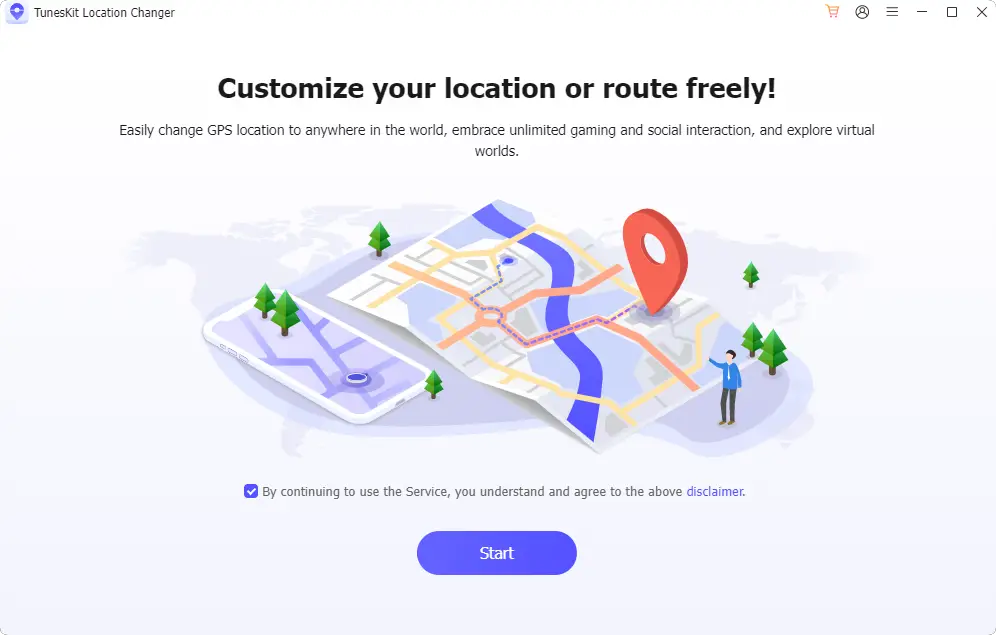
Step 1: Download, install and launch TunesKit Location Changer on your computer (Windows or Mac).
Check disclaimer and continue with Start button.
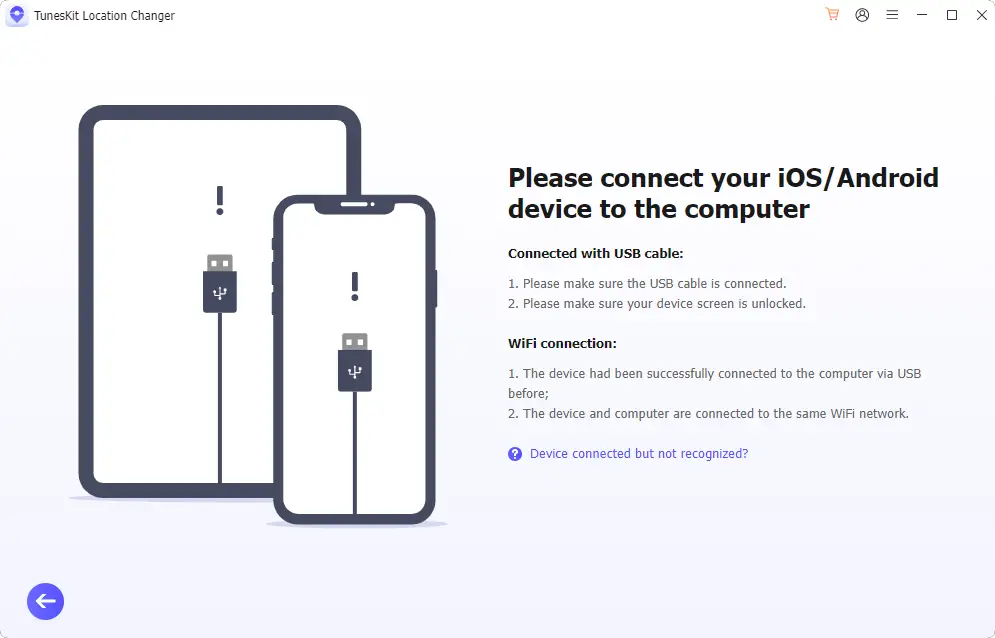
Step 2: Connect your iPhone to the computer via USB cable or WiFi network.
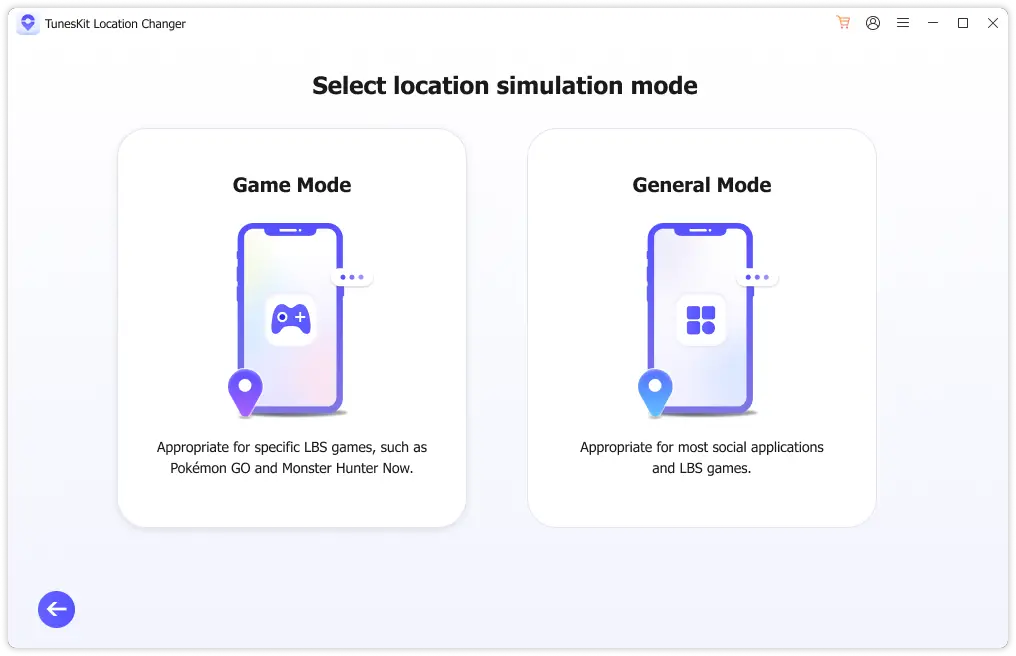
Step 3: Based on your actual needs, choose Game Mode or General Mode. Then you can follow the onscreen instructions to finish setup on your iPhone device.
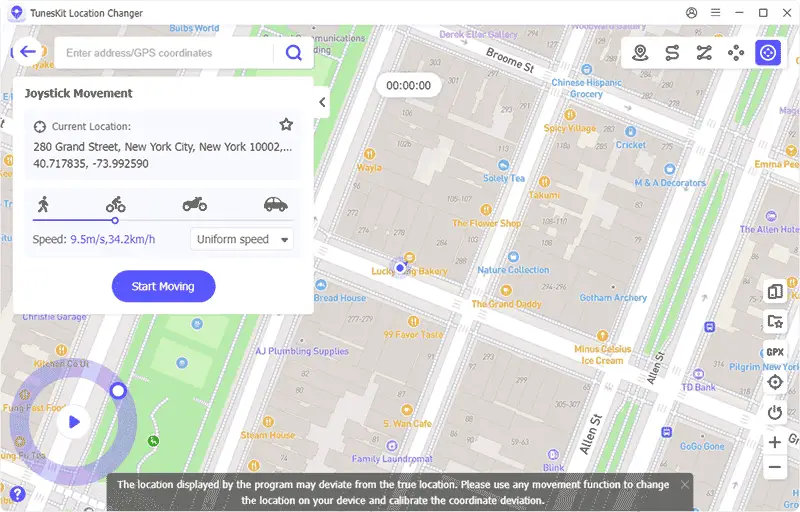
Step 4: Once you access the map interface. Pick up a mode at the upper right corner. Afterwards, select your desired fake location by searching for an address or clicking on the map, then click on “Start Moving” to change your iPhone’s GPS instantly.
In this way, you can hide your real location and don’t need to share it with others.
Method 2: Set Another iOS Device as Location Source
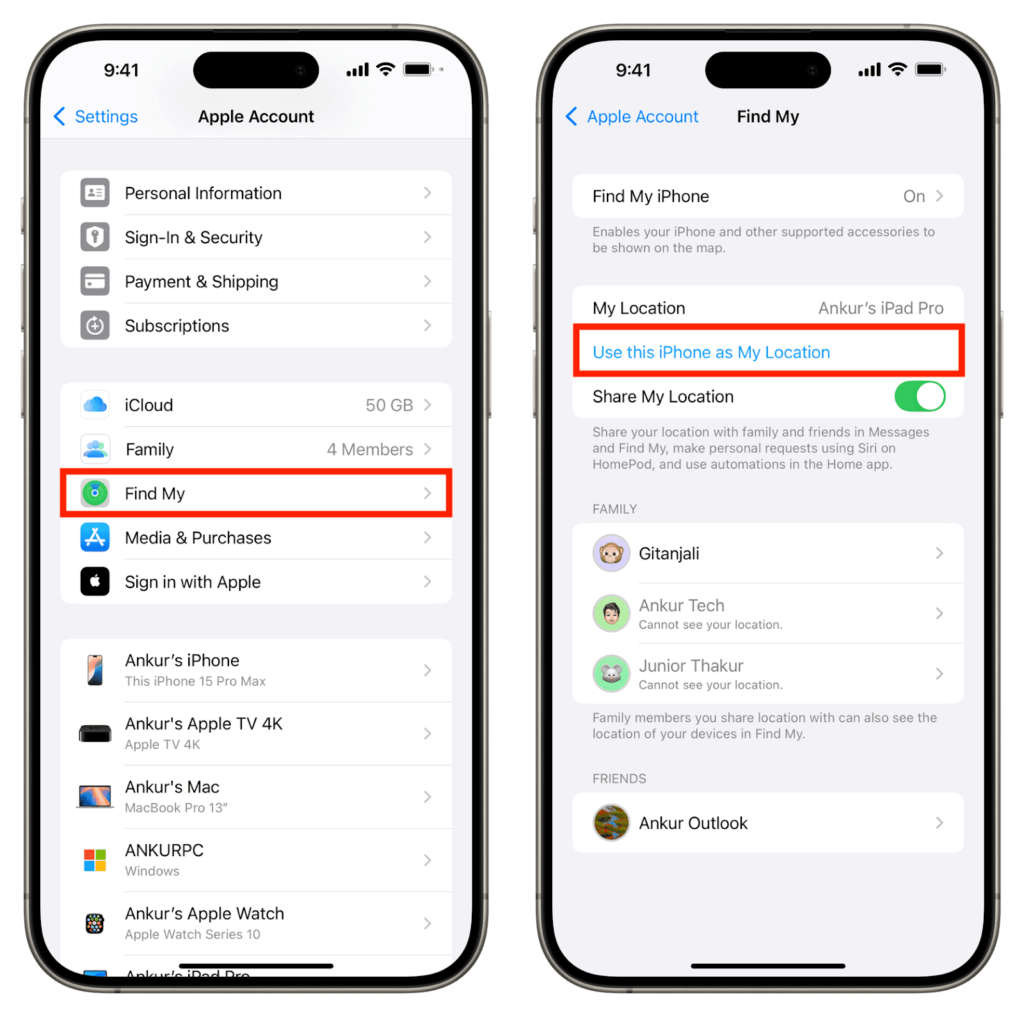
If you own a second Apple device, such as an iPad or an old iPhone, you can use it as a decoy. This method works by setting the stationary device as your primary location source.
For this to work, both devices must be signed in to the same Apple ID.
Pros:
- A quick way to spoof your real location
Cons:
- Require a second iOS device
- Your device’s location will not be hidden from Family Sharing members
Step 1. On your secondary iOS device, open Settings.
Step 2. Go to your name/profile at the top and select Find My.
Step 3. Tap on Use this iPhone as My Location. Once enabled, others will see the location of this secondary device rather than the phone you are carrying with you.
Method 3: Stop Sharing Directly Through Find My App
Find My app is the central hub for location sharing on iOS devices. It allows you to manage exactly who sees your location.
You can choose to stop sharing with specific individuals without notifying the entire list.
Pros:
- Simple to use on iPhone
- Allow you to remove target specific people
Cons:
- The person you remove may eventually notice they can no longer see you.
- If you stop sharing location, you won’t be able to use the app to find your own device if it gets lost.
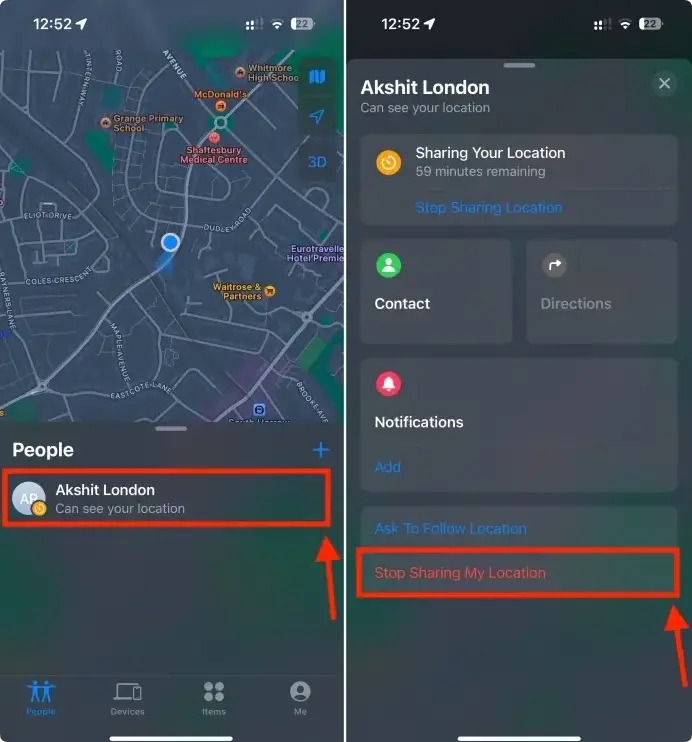
Step 1. Open the Find My app on your iPhone.
Step 2. Tap on the People tab to see who you are sharing with.
Step 3. Select the person you want to hide your location from.
Step 4. Scroll down and tap Stop Sharing My Location.
Method 4: Disable Share My Location in Settings
If you want to turn off all location sharing at once, you can do this through your iPhone’s main settings. This can stop sharing with everyone simultaneously.
Pros:
- One-stop solution to turn off sharing entirely
- No notifications are sent when you disable the service
Cons:
- Apps that rely on your location (like Maps, Weather, or Uber) may not function correctly
- Easy for others to notice the abnormal of your location
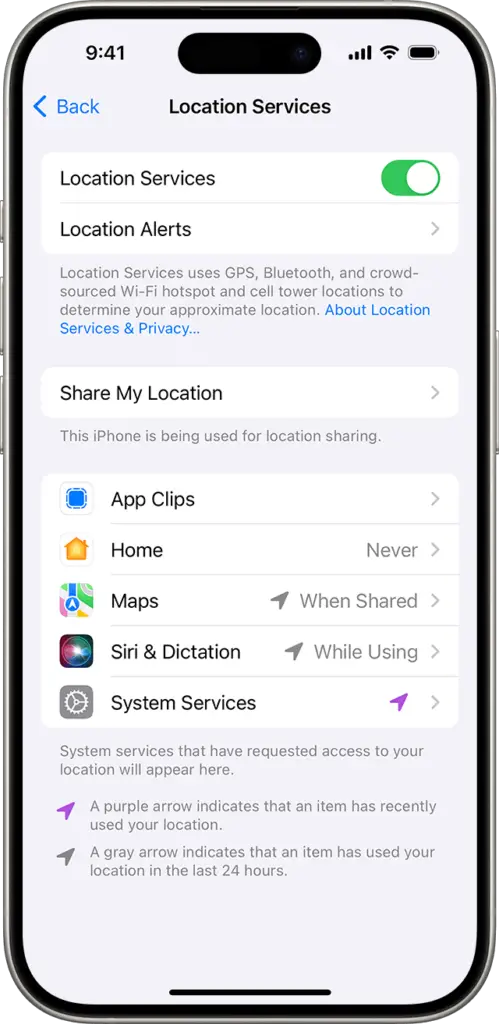
Step 1. Open the Settings app and scroll down to Privacy & Security.
Step 2. Tap on Location Services.
Step 3. Choose Share My Location.
Step 4. Now turn off Share My Location option.
Summary
Sometimes, it’s necessary to stop sharing location on iPhone. This can protect your privacy well and keep your personal space confidently.
If you don’t know how to do this, follow detailed guides in this post. You can change basic settings on your iPhone to stop sharing location or use a tool like TunesKit Location Changer to hide your real GPS location.
More iDevice Central Guides
- iOS 17 Jailbreak RELEASED! How to Jailbreak iOS 17 with PaleRa1n
- How to Jailbreak iOS 18.0 – iOS 18.2.1 / iOS 18.3 With Tweaks
- Download iRemovalRa1n Jailbreak (CheckRa1n for Windows)
- Dopamine Jailbreak (Fugu15 Max) Release Is Coming Soon for iOS 15.0 – 15.4.1 A12+
- Cowabunga Lite For iOS 16.2 – 16.4 Released in Beta! Install Tweaks and Themes Without Jailbreak
- Fugu15 Max Jailbreak: All Confirmed Working Rootless Tweaks List
- iOS 14.0 – 16.1.2 – All MacDirtyCow Tools IPAs
- iOS Jailbreak Tools for All iOS Versions
