
There’s nothing like a nostalgic feeling of playing your old PlayStation favorites. The first version of PlayStation brought in some veritable classics, such as Metal Gear Solid, Final Fantasy VII, Vagrant Story, Takken 3 or Ape Escape, just to name a few.
While you can pretty much emulate any old-school console on a computer, the truth is things change when it comes to mobile devices. The emulator market for mobile devices is quite limited, often leaving you without any solutions at all.
Some methods may work reliably, while others might have performance or compatibility issues across various iOS versions.
When trying to figure out how to play PlayStation games on an iPhone, the good news is you can actually do it without too much headache. This being said, let’s go through some of the best ways to make your dreams come true on your mobile device.
- Option 1: Use an Emulator
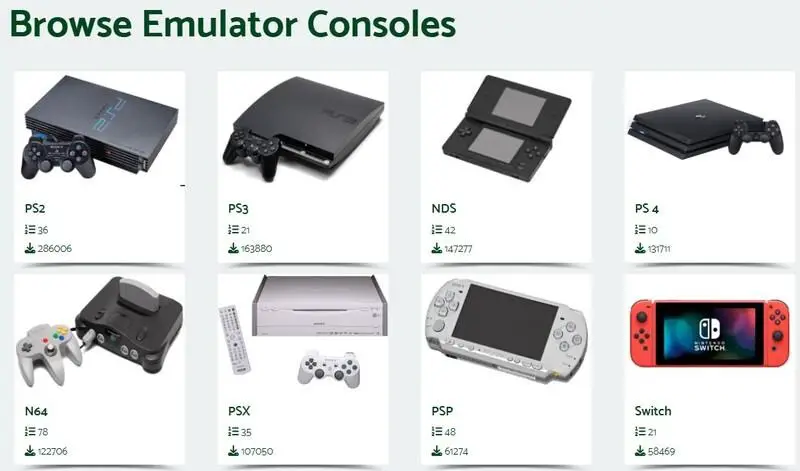
If you’ve used emulators on computers, the operating principle is the same when it comes to mobile devices. Setting up is straightforward, but it may require a bit more attention to file management due to iOS restrictions.
If you haven’t done it before, you should know that an emulator is a piece of software that replicates the operating system of the console.
Some emulators are made for particular consoles, others are more general and can emulate more consoles. If you’re not sure how to play PlayStation games on an iPhone, some of the best emulators include Gamma, RetroArch, PPSSPP and MAME.
Here are the steps to do it:
- Download the emulator. Go through the App Store and find an emulator for PlayStation. Gamma is quite popular and can be found in the store. Other emulators may have to be installed from third party sources. All of them work in the exact same manner and usually offer easy navigation for loading games.
- Download your favorite PlayStation One games. Find a reliable website that offers access to the original games. This is the best way to do it because it doesn’t require any technical knowledge. Games will be downloaded as images.
- An alternative to the above step would be to turn your old cartridges and games into image files. This process is too complicated and requires technical experience. Most people avoid getting games this way, simply because downloading them is easier and quicker.
- Save all the game files in the same folder. It’ll make your life easier later whenever you load new games. Make sure they’re visible in the Files application on your iPhone. In other words, don’t store them somewhere in the cloud, but on your device for quicker access.
- Load your games. Run the emulator application. No matter what emulator you choose, you should have an option to add files or open files. Navigate where your games are and load a game.
On top of all these, you may want to twitch some of the settings as well. If you’re not sure what you’re doing, simply leave the settings as the default. Some emulators will have different options that may not have been available in the original games.
For example, you might be able to save your progress or perhaps change the graphics. As for controls, they’ll be displayed on your screen, similar to the original controls on PlayStation.
- Option 2: Play Games Remotely
This is another good answer when you’re not sure how to play PlayStation games on an iPhone. However, compared to the emulator option, it’s a bit more technical and involves a few extra steps. But then, you don’t need to be a genius to figure it out. This option is a bit more official.
It’s worth noting that this option only works on newer versions of PlayStation consoles, rather than the first generation PS. It implies playing games remotely, which PlayStation One didn’t have as a feature, so this is primarily for PS4, PS5 and beyond.
All in all, assuming you have a new console, here are the steps:
- Download the associated mobile apps. First, you’ll need to go to the App Store and download the PlayStation mobile app. Second, you’ll need the PlayStation Remote Play app. Both of them are official and available in the official store.
- Enable remote access on your console. Obviously, you should still have the original PlayStation console for your digital library. To enable it, turn the console on, but do it in rest mode. Then, go to its settings and enable the Remote Play feature.
- Sign in. On your iPhone, sign into your PlayStation account. Use the same account on your console.
- Connect. Make sure the iPhone and console are connected. The app on your iPhone will search for the console. Pairing them is fairly simple. The screen will show up on your iPhone once the connection is established.
For any of these options, you can add a controller for a more authentic console feel. However, such controllers are normally connected through Bluetooth. As long as it has wireless connectivity, there should be no issue with it.
Bottom line, learning how to play PlayStation games on an iPhone isn’t too hard at all. The emulator version is by far the best one, but not the only one available. If you have a newer PlayStation console that allows remote play, you can also use PlayStation’s official apps for a more official experience.
More iDevice Central Guides
- iOS 17 Jailbreak RELEASED! How to Jailbreak iOS 17 with PaleRa1n
- How to Jailbreak iOS 18.0 – iOS 18.2.1 / iOS 18.3 With Tweaks
- Download iRemovalRa1n Jailbreak (CheckRa1n for Windows)
- Dopamine Jailbreak (Fugu15 Max) Release Is Coming Soon for iOS 15.0 – 15.4.1 A12+
- Cowabunga Lite For iOS 16.2 – 16.4 Released in Beta! Install Tweaks and Themes Without Jailbreak
- Fugu15 Max Jailbreak: All Confirmed Working Rootless Tweaks List
- iOS 14.0 – 16.1.2 – All MacDirtyCow Tools IPAs
- iOS Jailbreak Tools for All iOS Versions


